You can set up the basic POS screen to suit your own preferences: buttons, categories, colours and product photos. You choose the overall screen layout (the POS layout) under Activate the POS.
Setting up buttons and categories#
Use the Screen (Scherm) menu on the management page to edit the product buttons and categories. The most convenient order:
Set the number of columns and the row height for each category (default: 6 columns, height 120). Few products? Use large buttons. Many products? Use more columns with shorter buttons.
Add spaces where you want free room between buttons: a space takes the place of a button but stays invisible on the POS.
Adjust the position and size of the buttons, and choose a colour for each button.
Taken a wrong turn? With Reset lay-out (Reset lay-out) you put everything back to alphabetical and neutral in one click.
Product photos on the buttons#
On the management page, click Screen at the top, then Photo mode (Fotomodus) on the right.
Choose which products you want to show photos for: everything at once or your own selection.
Choose the display: Cover fills the whole button, Fit fits the photo without cropping.
Save. Can't see the photos straight away? Refresh the browser.
The clock#
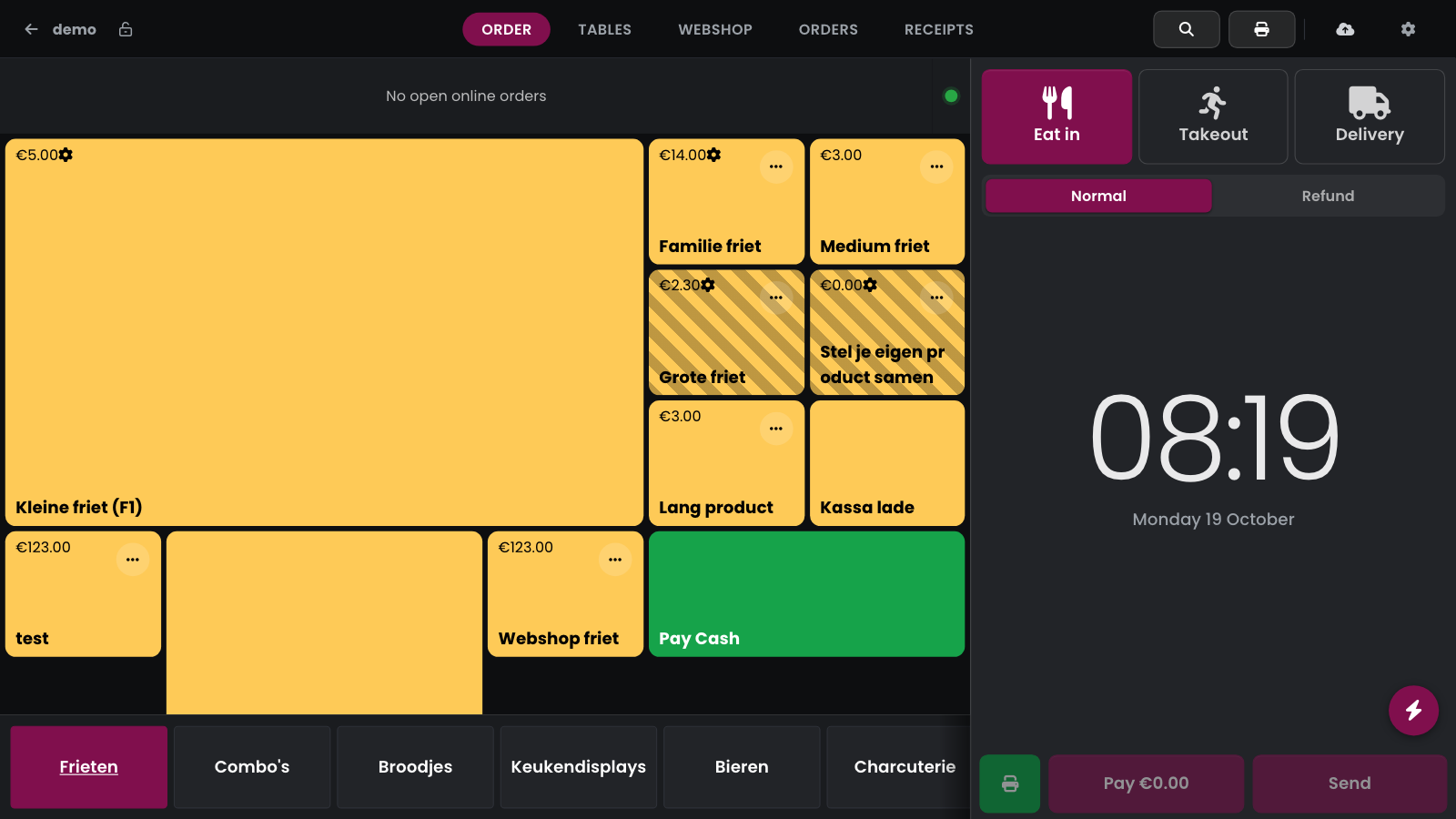
When the sales buffer is empty, the POS shows the time there in large digits, with the date underneath. This clock is on every POS and makes way as soon as you ring up a product.
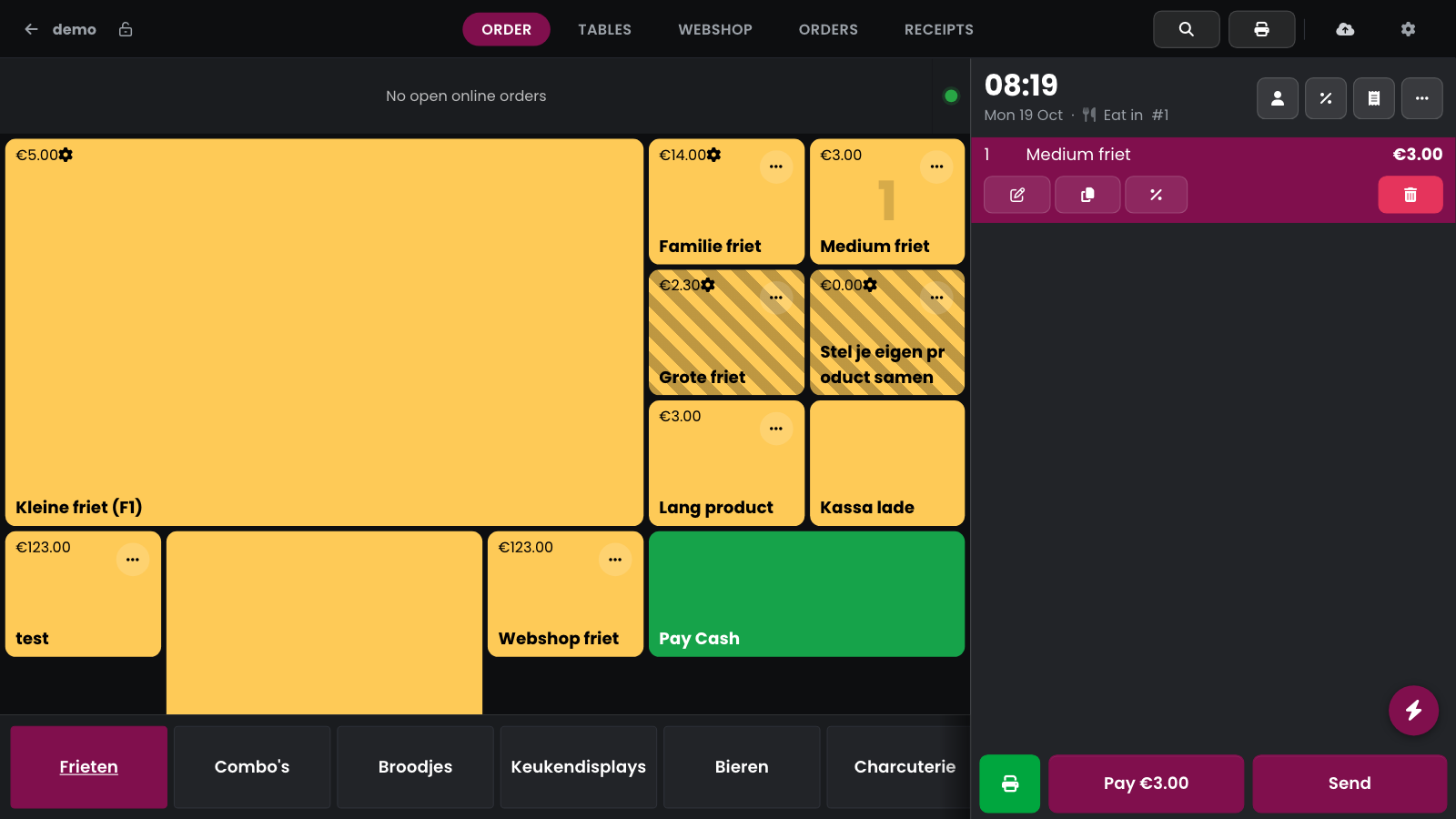
To see the time while you enter an order as well, turn on the clock at the top of the sales buffer. The time then sits above the date, the order type and the order number.
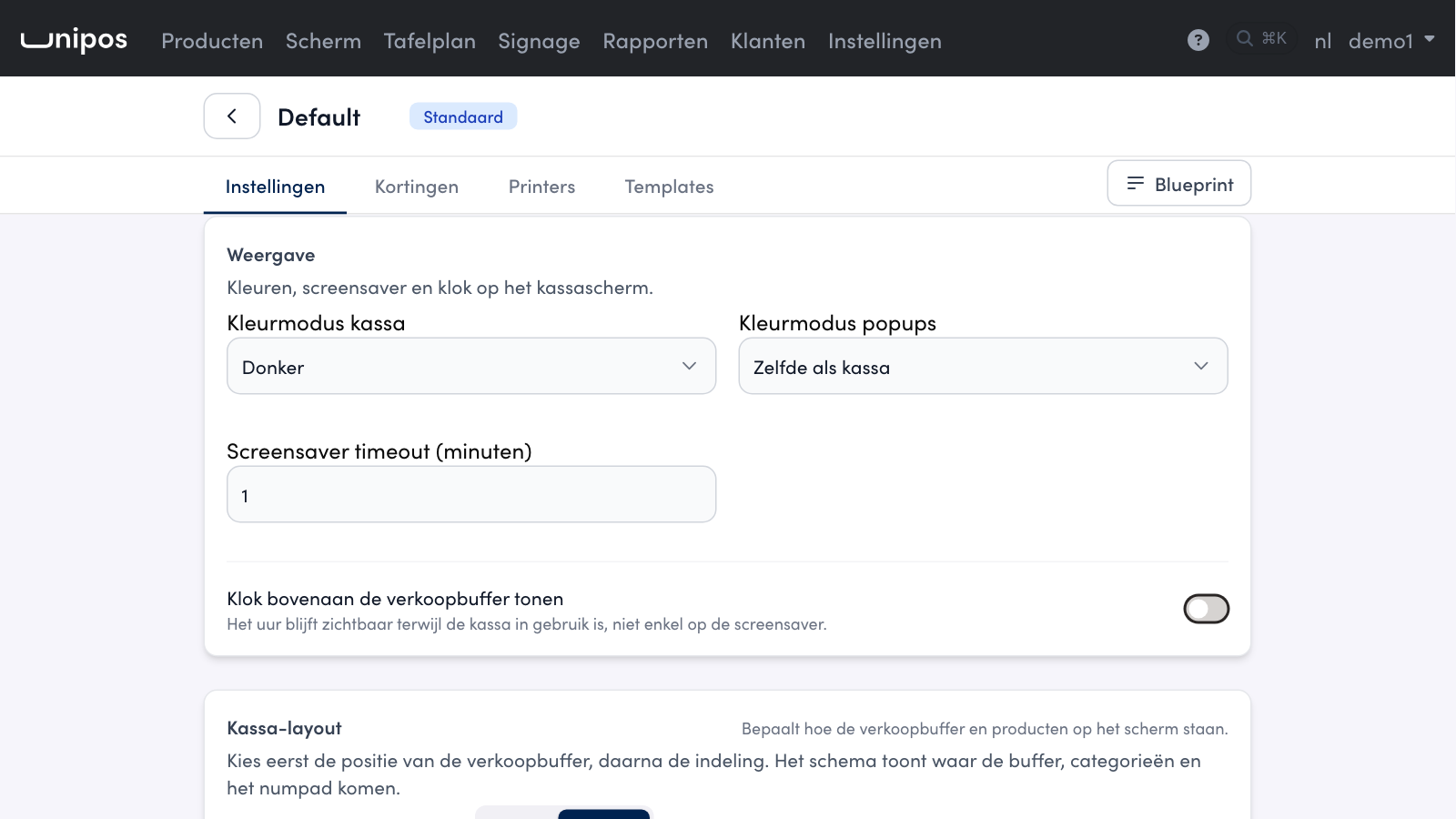
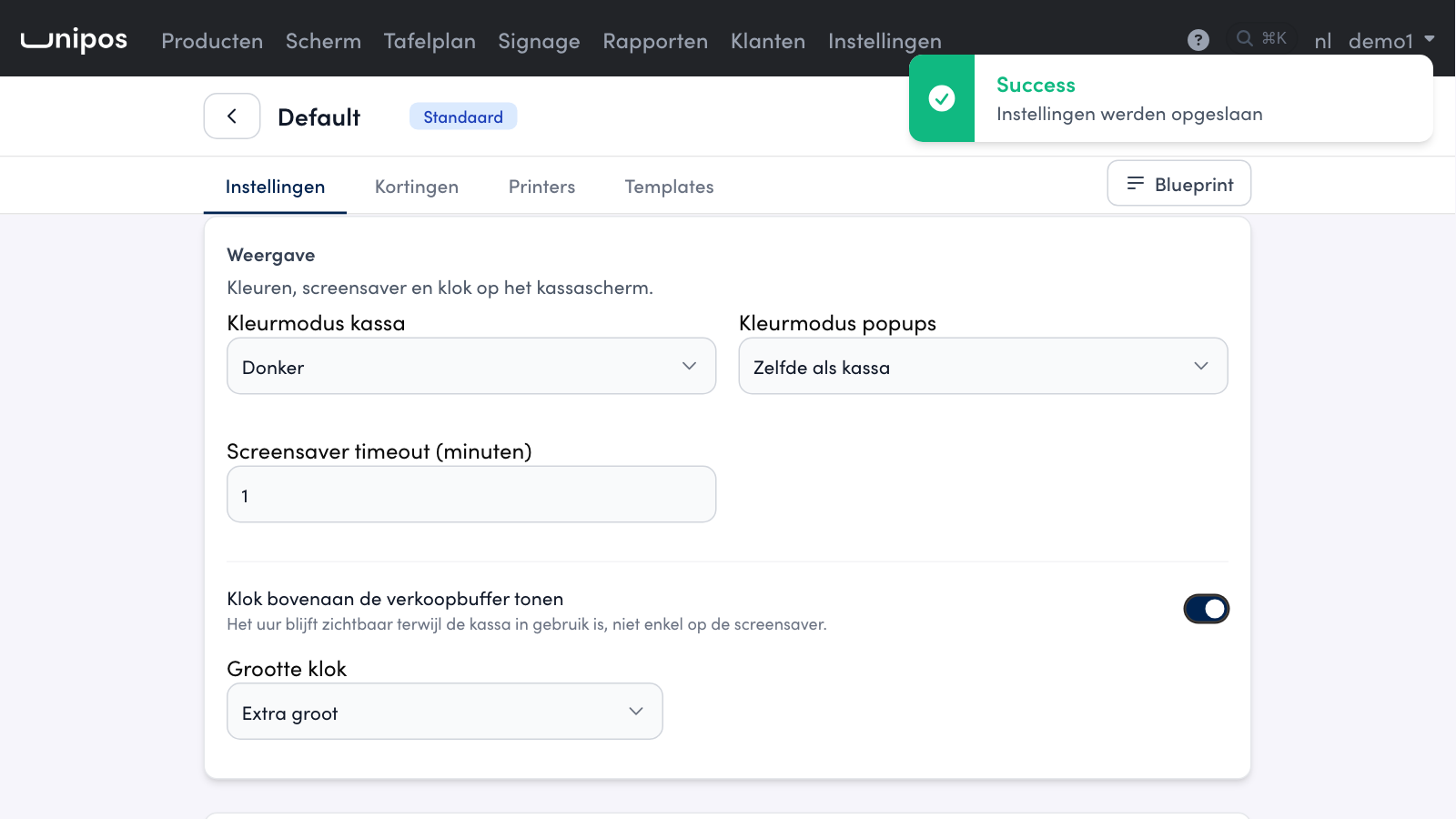
On the management page, go to POS configurations and open your configuration.
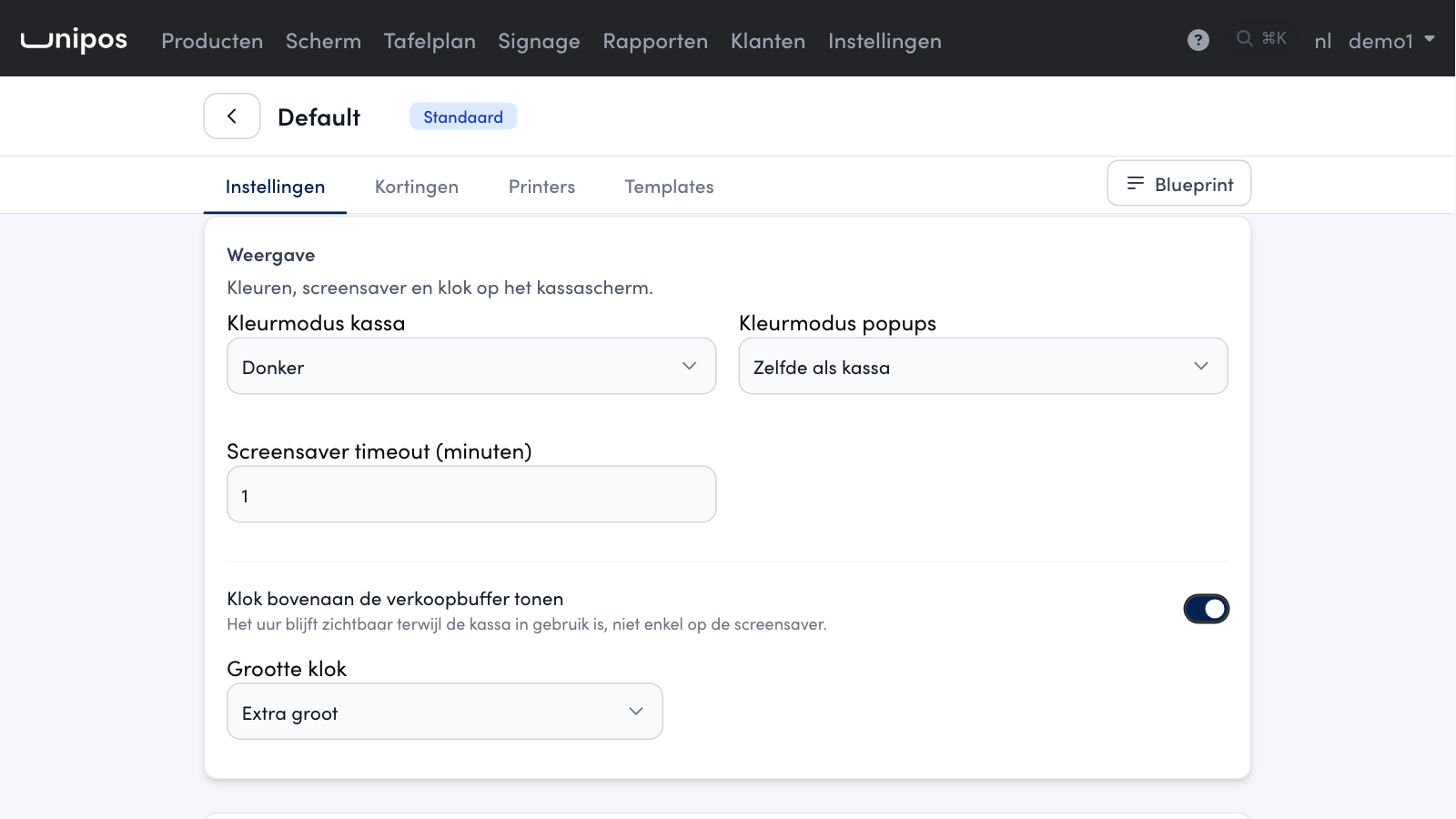
On the Instellingen (Settings) tab, under Weergave (Display), turn on Klok bovenaan de verkoopbuffer tonen (show the clock at the top of the sales buffer).
Under Grootte klok (clock size), choose how large the time is: Klein, Middel, Groot or Extra groot (small to extra large).
Save. The POS picks up the clock at the next sync, no restart needed.
On a narrow screen, such as a phone, the POS shows no clock. The date follows your business's default language.